
Automating Entra ID user provisioning with Power Apps
This article describes how I automated the creation of user accounts in Microsoft Entra ID using Power Apps and Power Automate.
In an environment I am currently working with, external specialists occasionally need temporary access to certain systems. For these cases, separate user accounts are created in Microsoft Entra ID. To keep things simple, I refer to them as Specialist accounts throughout this article.
Before building this solution, these accounts were created manually in the Microsoft 365 Admin Center. The goal was to replace this process with a simple and structured approach using the Power Platform.
I describe the main design decisions, the implementation, and some lessons learned while building the first version of the solution.
Background and objectives
Before building the solution, the process was fully manual. A new Specialist account was created directly in the Microsoft 365 Admin Center. During the creation process, a mailbox was provisioned automatically and the required license was selected manually. In practice, the exact license combination was not always identical.
Afterwards, the Specialist was informed separately. In most cases, this meant writing an individual email with the account details and initial password information.
None of these steps were technically difficult. However, the process depended entirely on manual execution and consistency. Over time, differences appeared, slightly different license selections, minor variations in naming, or differences in how information was communicated.
The objective for version 1.0 was simple: replace this manual workflow with a structured and consistent process. I did not aim to redesign identity management or introduce complex approval steps. The focus was on creating a reliable baseline that standardizes account creation and reduces variability.
Architecture considerations
When I started building this solution, my main focus was simplicity. I did not want to introduce unnecessary structure or design a solution that was more complex than needed for this task.
I also spent some time thinking about how to structure environments and solutions in the Power Platform. Since this topic applies to future use cases as well, I describe my approach in a separate article on structuring the Power Platform for production use cases.
For this use case, the setup is simple. There is a Canvas App as the frontend, a Power Automate flow that performs the actions, and Microsoft Entra ID as the backend system.
The app collects the required data and calls the flow. The flow creates the account, assigns the group, and returns a result back to the app. This leads to the question of authentication and required permissions.
Identity and permission model
The flow needs permissions to create users and manage group membership in Microsoft Entra ID. There are different ways to handle this in the Power Platform.
One option would be to use an App Registration with application permissions. From a security perspective, this is often the cleaner approach. It avoids the use of a user account and allows more precise control over permissions.
For version 1.0, I decided against this option. Instead, I used a dedicated service account with the User Administrator role. The flow runs under this account and uses its delegated permissions to perform the required actions.
The main reason for this decision was simplicity. The service account approach is easier to set up and easier to understand. The account is used only for this automation and not for interactive work. Permissions are limited to what is required for user creation and group management.
This decision is not meant to be a universal recommendation. For larger environments or stricter governance requirements, an App Registration would likely be the better choice. For this specific use case and scope, the service account was a pragmatic solution.
Identifying specialist accounts
At the beginning, I considered using a custom attribute to mark Specialist accounts. Microsoft Entra ID provides extension attributes that can be used for this purpose. The idea was to store a value that identifies these accounts.
Technically, this would have worked. However, it would also have introduced additional complexity, since the attribute would need to be set during account creation and maintained over time. In the end, I decided to use a security group instead.
Each Specialist account is added to this group when it is created. This makes it easy to identify these accounts and manage them later if needed.
An additional benefit is that the license can be assigned directly to the group. New accounts therefore receive the correct license automatically when they are added.
Implementation
The solution consists of two main components: a Canvas App and a Power Automate flow.
The Canvas App is used to enter the information required for the new Specialist account. The operator provides the first name, last name, a mobile number, and an external email address. The app also shows existing Specialist accounts to provide a quick overview.
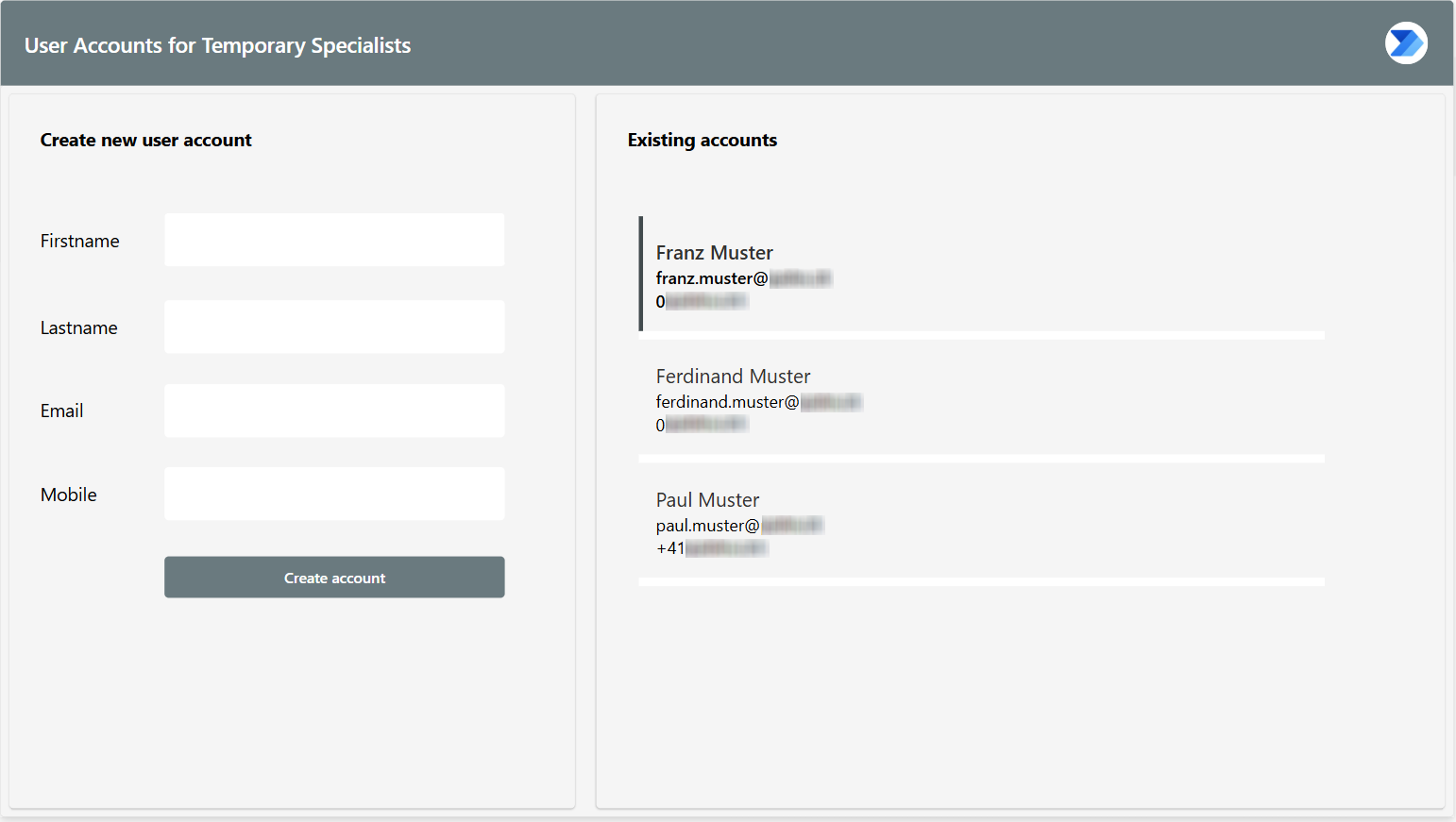
The app uses modern controls and a container-based layout to keep the interface structured and easy to maintain.
When the form is submitted, the app calls the flow using the Run() function and passes the entered data as parameters.
The Power Automate flow performs the actions in Microsoft Entra ID. The following screenshot shows the main part of the flow with the Try/Catch scopes.
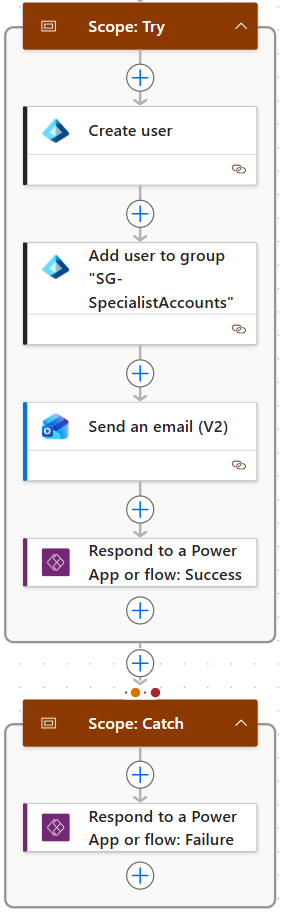
The flow creates the user account, adds the new account to the Specialist group, and sends an email to the external address that was entered in the app. This email contains the information the Specialist needs to access the new account.
At the end of the process, the flow returns a result to the Canvas App so the operator can see whether the process was successful or if an error occurred. I describe this simple error handling approach in a separate article.
Lessons learned
One thing that became clear while building this solution is how important it is to keep the first version simple.
At the beginning, I considered using extension attributes to identify Specialist accounts. While this would have worked, it also would have introduced additional steps and made the overall solution slightly harder to maintain. Using a security group turned out to be a much simpler and more practical approach.
Another point was the authentication model. Using a service account was not the most sophisticated option, but it allowed the solution to be implemented quickly and kept the overall setup easy to understand. For a first version, this trade-off felt reasonable.
Finally, building the solution as a small Canvas App combined with a single flow proved to be sufficient for this use case. It showed that even simple tools in the Power Platform can solve real operational tasks without requiring a large architecture.
Next steps
There are several directions in which I could extend the solution over time. One option would be to improve the authentication model by replacing the service account with an App Registration. Another possibility would be to introduce additional checks or approval steps before a new account is created.
I could also expand the functionality of the Canvas App itself. For example, the app could include additional account settings, provide more visibility into existing Specialist accounts, or add the ability to remove Specialist accounts when they are no longer needed.
For now, my goal was simply to establish a clear and repeatable process. Future improvements can build on this foundation as new requirements appear.